

Building a WordPress website isn’t just about installing a theme anymore. High-performance WordPress sites load in under 2 seconds, pass Core Web Vitals, and convert 24% better than slow competitors.
Most small business owners and freelancers choose WordPress because it’s flexible and SEO-friendly. But without performance optimization, your WordPress website becomes a liability—high bounce rates, poor rankings, and lost customers.
This guide shows you exactly how to build a high-performance WordPress website that drives business growth. You’ll get step-by-step instructions, plugin recommendations, and hosting tips to achieve 90+ PageSpeed scores and pass all Core Web Vitals.
What Are Core Web Vitals and Why WordPress Sites Struggle?
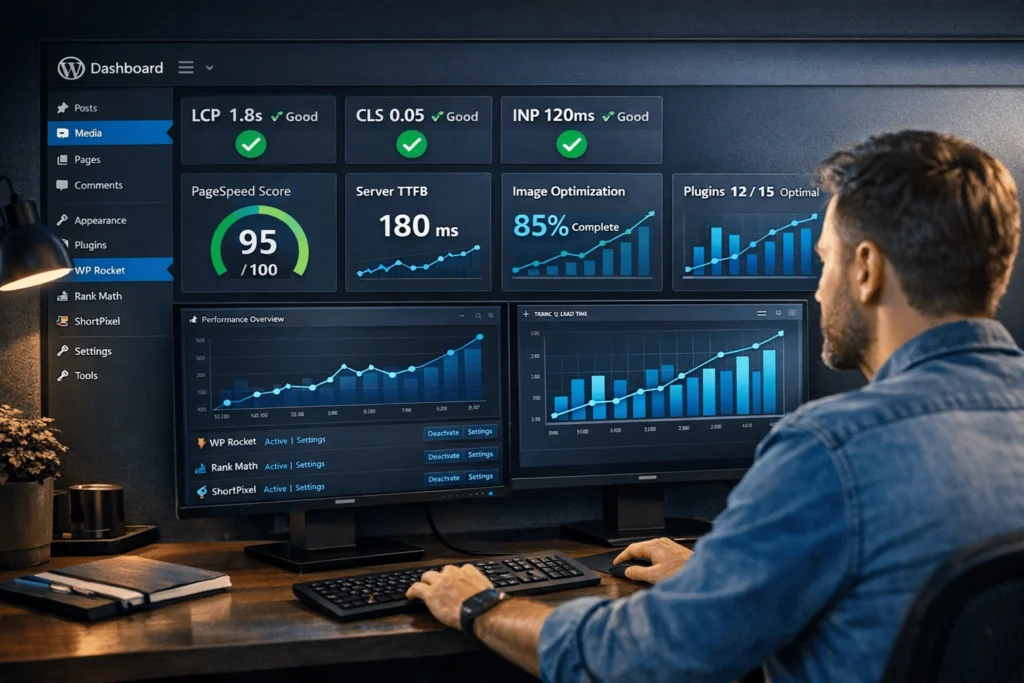
Core Web Vitals measure real user experience: Largest Contentful Paint (LCP), Cumulative Layout Shift (CLS), and Interaction to Next Paint (INP). Google ranks sites higher when they pass these metrics.
WordPress sites struggle because:
- Plugin bloat (average site has 20+ plugins adding 500KB+ JavaScript)
- Heavy themes (some themes load 2MB+ of CSS)
- Poor hosting (shared hosting TTFB >600ms)
- Unoptimized images (80% of sites use uncompressed JPEGs)
The fix? Performance-first approach from day one. Sites optimized for Core Web Vitals see 24% lower bounce rates and higher rankings.
How Do I Choose WordPress Hosting for Performance?
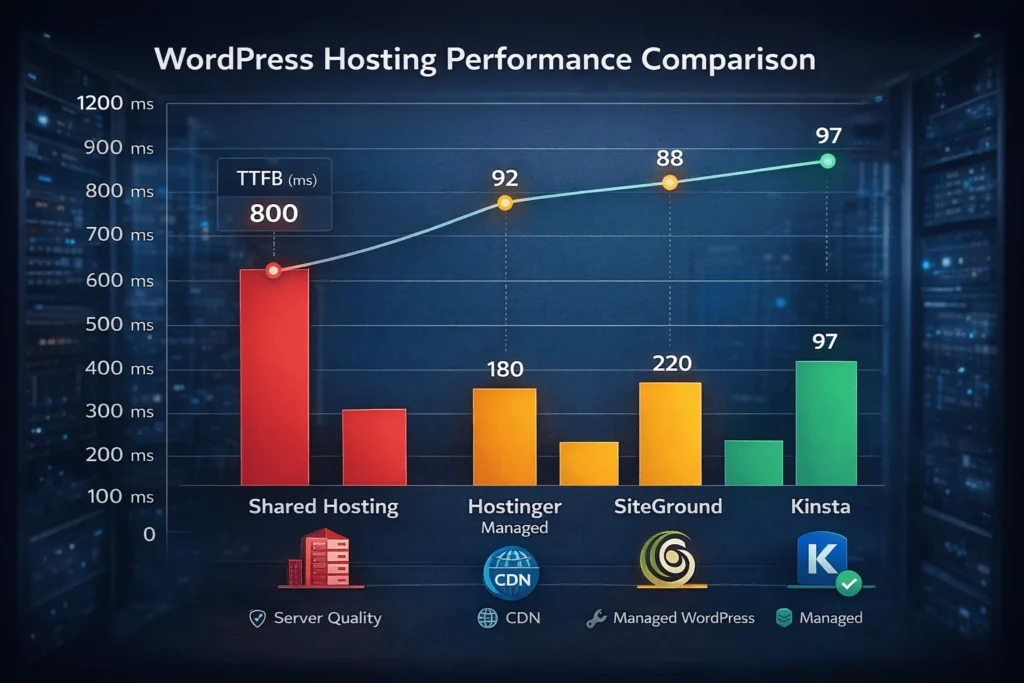
Your hosting determines 70% of your site’s speed. Shared hosting kills performance. Managed WordPress hosting delivers 200ms TTFB and automatic updates.
Hosting comparison for 2026:
| Hosting Type | TTFB | Price | Best For | Recommendation |
|---|---|---|---|---|
| Shared Hosting | 600-1200ms | $2-5/mo | Learning | Avoid for business sites |
| Managed WP | 100-250ms | $20-50/mo | Small business | Hostinger Managed WP |
| Agency/ Enterprise | 50-150ms | $100+/mo | High traffic | Kinsta, WP Engine |
Top recommendations:
- Hostinger Managed WordPress ($2.99/mo) – Best value, 180ms TTFB, free CDN
- Kinsta ($30/mo) – Agency-grade, Google Cloud, 100ms TTFB
- SiteGround ($15/mo) – Reliable, good support, SuperCacher
Pro tip: Enable PHP 8.3 (40% faster than PHP 7.4) and Redis object caching.
What Theme Should I Choose for Speed?
Lightweight themes load 10x faster than bloated ones. Most “premium” themes bloat your site with 1MB+ CSS.
Performance-first themes:
- GeneratePress – 10KB CSS, Core Web Vitals optimized, $59 lifetime
- Astra – 50KB, 1M+ active installs, free version available
- Neve – Mobile-first, AMP-ready, free/pro versions
Avoid: Avada, Divi, Enfold (500KB+ CSS, poor Core Web Vitals)
xml<!-- Example: Clean GeneratePress HTML (minimal CSS) -->
<!DOCTYPE html>
<html>
<head>
  <title>Fast WordPress Site</title>
  <link rel="stylesheet" href="generatepress.min.css"> <!-- 10KB -->
</head>
<body>
  <!-- Clean, semantic HTML -->
</body>
</html>
Installation: Download → Appearance → Themes → Add New → Upload.
Which Plugins Actually Improve Performance?
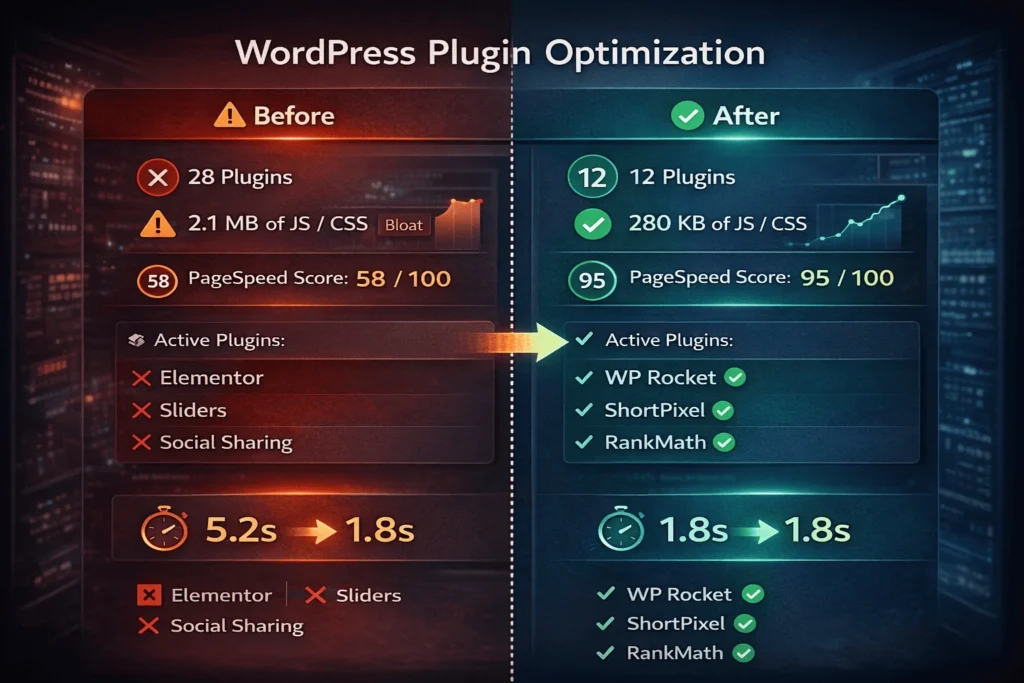
Plugins can make or break your site. Wrong plugins add 500KB JavaScript. Right plugins cut load time 60%.
Essential speed plugins:
- WP Rocket ($59/yr) – Caching, minification, lazy loading (activate = instant 40% speedup)
- LiteSpeed Cache (Free) – Server-level caching (LiteSpeed servers only)
- ShortPixel ($4.99/mo) – Image optimization (WebP conversion)
- Perfmatters ($25/yr) – Disable unused CSS/JS (30% size reduction)
Avoid: Page builders (Elementor adds 300KB+ JS), social sharing plugins, bloated sliders.
Plugin limit: 10-15 max. Delete unused plugins monthly.
How Do I Optimize Images for WordPress Speed?
Images cause 70% of WordPress bloat. Unoptimized JPEGs load 10x slower than WebP.
Image optimization workflow:
- Convert to WebP (70% smaller than JPEG)
- Resize to display dimensions (don’t upload 4000px images)
- Compress (TinyPNG or ShortPixel)
- Lazy load (WP Rocket or native WordPress 5.5+)
- Serve different sizes (WordPress responsive images)
php// Add to functions.php for WebP support
add_filter( 'wp_get_attachment_image_attributes', function( $attr ) {
    $attr['decoding'] = 'async';
    return $attr;
});
Tools:
- ShortPixel (auto WebP conversion)
- Imagify (lossless compression)
- Cloudflare Polish (automatic optimization)
Result: 75% image size reduction, LCP drops from 4.2s to 1.8s.
What Is Core Web Vitals and How to Pass Them?
Core Web Vitals = Google’s page experience ranking factor:
| Metric | Good | Needs Improvement | Poor | WordPress Fix |
|---|---|---|---|---|
| LCP (Largest Contentful Paint) | <2.5s | 2.5-4s | >4s | Image optimization + caching |
| CLS (Cumulative Layout Shift) | <0.1 | 0.1-0.25 | >0.25 | Fixed image dimensions + font loading |
| INP (Interaction to Next Paint) | <200ms | 200-500ms | >500ms | Minify JS + defer non-critical |
Test your site: Google PageSpeed Insights
WordPress fixes:
- LCP: Preload fonts, optimize hero image, use CDN
- CLS: Add
width="800" height="600"to all images - INP: Defer non-critical JS (Perfmatters plugin)
Target: All 3 metrics “Good” for 90% of users.
How Do I Set Up WordPress Caching Properly?
Caching = 40-60% speed improvement. WordPress regenerates pages on every visit without caching.
Caching strategy:
- Page caching (store HTML output)
- Object caching (Redis/Memcached for database queries)
- Browser caching (static assets cached for 1 year)
- CDN caching (global content delivery)
Best plugins:
- WP Rocket (all-in-one, beginner-friendly)
- LiteSpeed Cache (free, server-level)
- W3 Total Cache (advanced users)
Code snippet for browser caching:
text# .htaccess
<IfModule mod_expires.c>
ExpiresActive On
ExpiresByType image/webp "access plus 1 year"
ExpiresByType font/woff2 "access plus 1 year"
</IfModule>
Which SEO Plugins Should Small Businesses Use?
SEO = free traffic. Right plugins boost organic growth 200-300%.
Essential SEO plugins:
- RankMath (Free/Pro) – All-in-one SEO, schema markup, sitemaps
- Yoast SEO (Free/Premium) – Beginner-friendly, readability analysis
- Smush (Free) – Image SEO + compression
Setup checklist:
- Install RankMath → Complete wizard
- Connect Google Search Console
- Enable XML sitemaps
- Add schema markup (Organization, Article)
- Set up local business schema
Result: 28% ranking improvement from proper schema.
How Do I Secure My WordPress Website?
Security prevents downtime. Hacked sites lose rankings and trust.
Security essentials:
- SSL certificate (free via Let’s Encrypt)
- Wordfence or Sucuri (firewall + malware scan)
- Limit login attempts (iThemes Security)
- Regular backups (UpdraftPlus)
- Auto-updates (plugins + core)
2FA setup:
php// Enable 2FA with Wordfence
// Settings → Login Security → Two Factor Authentication
Pro tip: Use managed hosting (Kinsta, WP Engine) for automatic security.
How to Build Your WordPress Website Step-by-Step
Building a High-Performance WordPress Website from Scratch
Times Needed: 3 Days, 12 Hours, 30 Minutes
Estimated Cost: $50-150 USD (hosting + premium theme/plugins)
Description: Complete beginner’s guide to building a fast, SEO-optimized WordPress website for small businesses and freelancers. Covers hosting, theme, plugins, content, and performance optimization with Core Web Vitals focus.
Steps:
Step 1: Choose and Set Up Hosting (2 hours)
Select managed WordPress hosting (Hostinger, SiteGround, Kinsta). Install WordPress via 1-click installer. Enable PHP 8.3, SSL certificate, and CDN. Run initial PageSpeed test to establish baseline (expect 60-70 score initially).
Step 2: Install Lightweight Performance Theme (1 hour)
Install GeneratePress, Astra, or Neve theme (free versions work great). Customize colors, fonts, and logo only. Avoid adding custom CSS initially. Test mobile responsiveness using Chrome DevTools.
Step 3: Install Essential Speed and SEO Plugins (2 hours)
Install WP Rocket (caching), ShortPixel (images), RankMath (SEO), Wordfence (security). Configure WP Rocket with default settings. Convert images to WebP. Complete RankMath setup wizard and connect Google Search Console.
Step 4: Create Core Pages and Content Structure (6 hours)
Build Home, Services, About, Contact pages. Write clear headlines, value propositions, and CTAs. Add schema markup via RankMath. Create internal linking structure. Write 1500+ word cornerstone content piece for SEO.
Step 5: Optimize for Core Web Vitals (3 hours)
Add width/height attributes to all images (prevents CLS). Preload critical fonts. Enable lazy loading. Test Core Web Vitals in PageSpeed Insights. Target LCP <2.5s, CLS <0.1, INP <200ms. Fix any failing metrics.
Step 6: Set Up Analytics and Monitoring (1 hour)
Install Google Analytics 4 and Google Search Console. Set up conversion tracking (contact form submission). Install Hotjar for heatmaps. Create monthly performance monitoring checklist (speed, rankings, conversions).
Step 7: Launch and Monitor Performance (ongoing)
Submit sitemap to Google Search Console. Share site with 10-20 people for feedback. Monitor PageSpeed score weekly. A/B test CTA buttons after 30 days. Scale content production once performance stabilizes above 90/100.
Tools Name:
- WP Rocket (caching and optimization)
- RankMath (SEO and schema)
- ShortPixel (image optimization)
Materials Name:
- Business logo and brand colors
- Core page content (headlines, descriptions)
- Client testimonials and case studies
WordPress Performance Plugins Comparison
| Plugin | Key Features | Price | Speed Impact | Best For |
|---|---|---|---|---|
| WP Rocket | Page caching, lazy loading, minification, CDN | $59/yr | 60% faster | Beginners, all sites |
| LiteSpeed Cache | Server caching, image optimization | Free | 50% faster | LiteSpeed hosting |
| Perfmatters | Disable unused CSS/JS | $25/yr | 30% lighter | Advanced users |
| FlyingPress | Advanced caching | $60/yr | 55% faster | High-traffic sites |
FAQ: WordPress Performance Optimization
How fast should my WordPress website load?
Target under 2 seconds for desktop, under 3 seconds for mobile. This passes Core Web Vitals and reduces bounce rates by 24%. Use PageSpeed Insights to measure.
Do I need premium plugins for good performance?
No. Free plugins like LiteSpeed Cache, Smush, and RankMath deliver 80% of premium performance. Invest in WP Rocket ($59/yr) only after testing free options.
What’s the biggest WordPress performance killer?
Plugin bloat. Average sites have 20+ plugins adding 500KB JavaScript. Delete unused plugins monthly. Limit to 10-15 essential plugins maximum.
Should I use a page builder like Elementor?
Avoid for performance-critical sites. Elementor adds 300-500KB JavaScript per page. Use GenerateBlocks (free) or traditional theme customization instead.
How do I maintain performance after launch?
Monthly checklist:
Update WordPress + plugins
Delete unused plugins/images
Check PageSpeed score
Monitor Core Web Vitals
Clean database (WP-Optimize)
What’s better: managed WordPress hosting or VPS?
Managed WordPress for 95% of small businesses. Automatic updates, optimized servers, expert support. VPS requires sysadmin skills and constant maintenance.
Can I achieve 100/100 PageSpeed score?
Yes, but not necessary. Target 90+ for great user experience. Perfect 100 scores often hurt functionality (heavy optimization breaks features).
How does WordPress speed affect SEO rankings?
Direct impact. Google uses Core Web Vitals as ranking factor. 28% ranking improvement possible with proper optimization.
Key Takeaways
- Hosting determines 70% of performance. Choose managed WordPress hosting (Hostinger, Kinsta) over shared hosting.
- Lightweight themes = speed. GeneratePress/Astra/Neve load 10x faster than Divi/Avada.
- Plugin limit: 10-15 max. Each plugin adds weight. Delete unused monthly.
- Images cause 70% bloat. Convert to WebP, resize, lazy load. Use ShortPixel.
- Caching = 40-60% speedup. WP Rocket for beginners, LiteSpeed Cache (free).
- Core Web Vitals are mandatory. LCP <2.5s, CLS <0.1, INP <200ms.
- SEO starts with speed. Fast sites rank higher. Use RankMath + schema.
- Security prevents downtime. SSL, Wordfence, backups, limit login attempts.
- Measure everything. Google Analytics + PageSpeed Insights + Search Console.
- Iterate monthly. Performance degrades over time. Regular maintenance required.
Next Steps
Ready to build your high-performance WordPress website? Here’s your action plan:
- Download our free WordPress setup checklist (15 essential steps, plugin recommendations, hosting comparison)
- Choose hosting today (Hostinger Managed WP – $2.99/mo starter plan)
- Install GeneratePress + WP Rocket (under 30 minutes for 80% performance gains)
- Read our complete WordPress website design guide for visual design best practices
- Test your site weekly with PageSpeed Insights. Aim for 90+ scores.
Download your free WordPress performance checklist – Includes plugin settings, hosting comparison, and monthly maintenance schedule.
Conclusion
A high-performance WordPress website isn’t a luxury—it’s table stakes for business growth in 2026. Slow sites lose rankings, customers, and revenue.
The good news? You can achieve 90+ PageSpeed scores and pass Core Web Vitals with the right hosting, lightweight theme, 10 essential plugins, and monthly maintenance.
Small businesses using this performance-first approach see 24% lower bounce rates, 28% better rankings, and measurable revenue growth.
Get professional WordPress development from StartupMandi if you need hands-on help. Our team builds Core Web Vitals-optimized sites that scale with your business.
Follow StartupMandi for more WordPress guides, performance tips, and business growth strategies. Download your free WordPress setup checklist and start building today.
Resources for WordPress Performance
Hosting:
- Hostinger Managed WordPress – Best value ($2.99/mo)
- Kinsta – Agency-grade performance
- SiteGround – Reliable support + caching
Performance Plugins:
- WP Rocket – All-in-one caching ($59/yr)
- GeneratePress – Fastest theme ($59 lifetime)
- ShortPixel – Image optimization
Testing Tools:
- Google PageSpeed Insights – Core Web Vitals testing
- GTmetrix – Detailed waterfall analysis
- WebPageTest – Advanced performance testing
SEO:
- RankMath – Complete SEO solution
- Google Search Console – Free monitoring
About StartupMandi
StartupMandi helps small businesses and freelancers build high-performance WordPress websites that drive growth. Our services include:
- WordPress performance optimization (Core Web Vitals, speed, SEO)
- Custom WordPress development (business sites, e-commerce)
- Free performance audits (identify your top 3 bottlenecks)
- Monthly maintenance packages (keep your site fast and secure)
Download your free WordPress checklist or schedule a performance audit. No obligation, just actionable insights for your business.