

What Is a Web Page Builder?
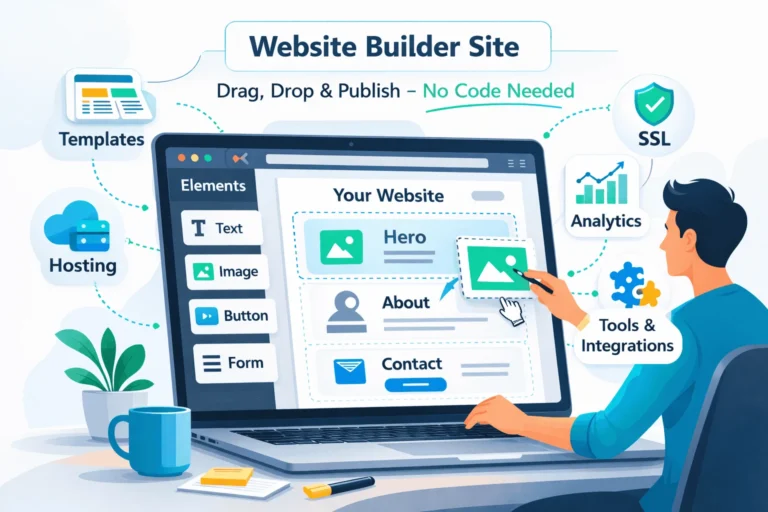
A web page builder is a visual tool that lets you create web pages by dragging and dropping elements on a canvas instead of writing code.
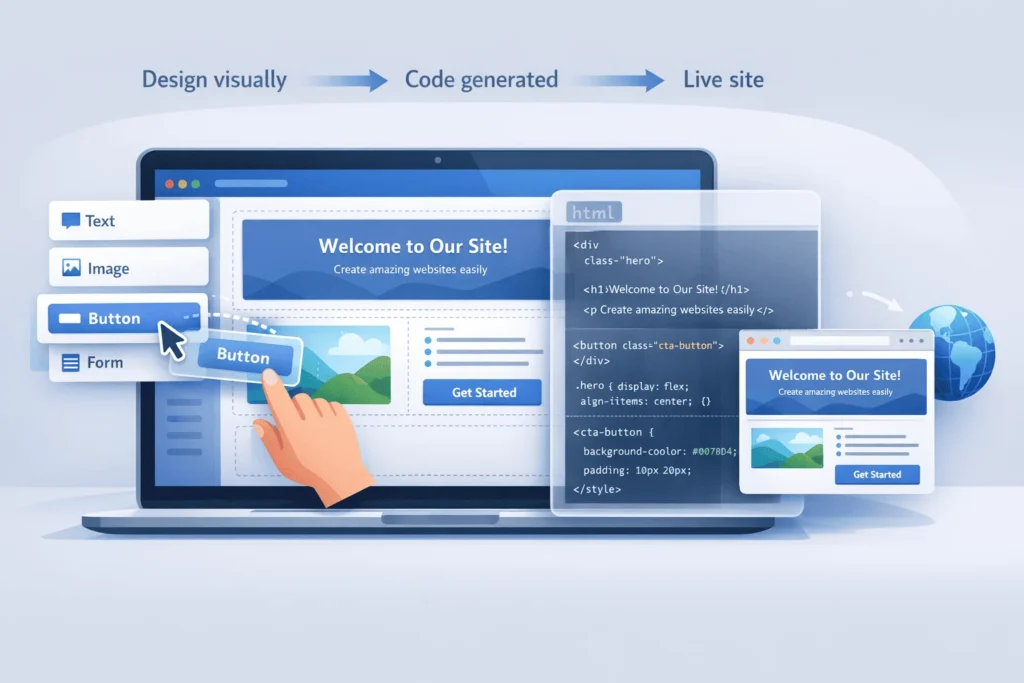
Behind the scenes, the builder converts your layout and style changes into HTML, CSS, and JavaScript, then hosts those files on its servers so they’re accessible as a live website.
Think of it as designing a page like a slide in PowerPoint, while the tool quietly writes all the technical code required for browsers and search engines.
How Does a Web Page Builder Work Step-by-Step?
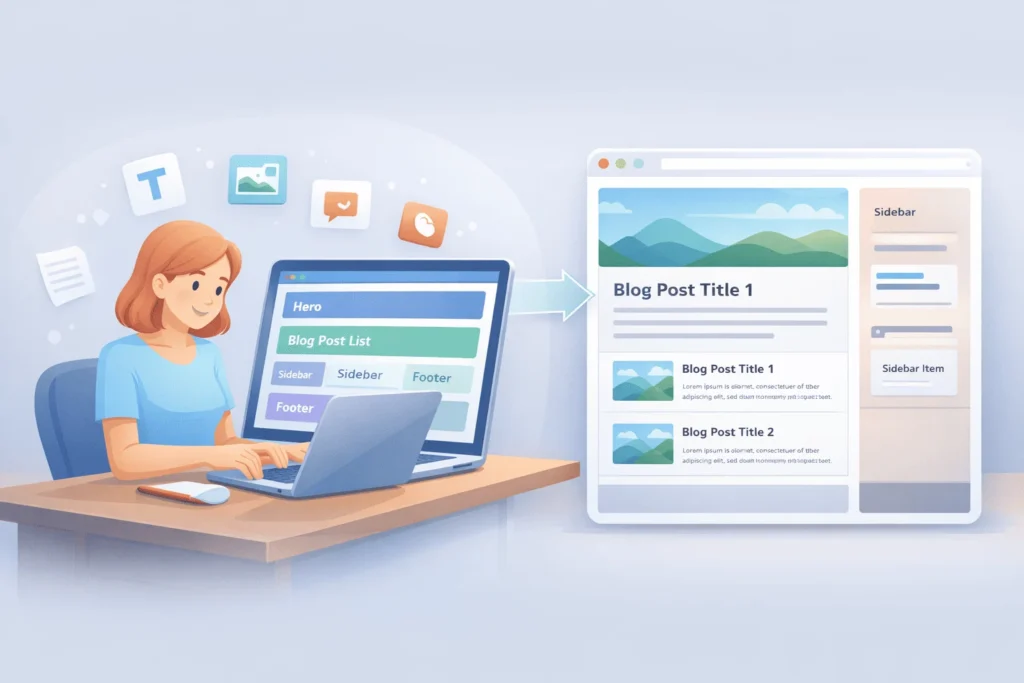
A modern web page builder typically follows four core steps:
- Choose a template as your starting layout.
- Drag and drop elements (text, images, buttons, forms) into sections.
- Customize styles and settings using visual controls.
- Publish to the web, with hosting and SSL handled automatically.
In the background, the builder structures content into sections, rows, and columns, then generates optimized HTML and CSS for each block.
“A drag-and-drop website builder lets you create websites by clicking, dragging, and placing elements directly onto a canvas, no coding required.” — Dorik
How Do Templates Power a Web Page Builder?
Templates are pre-designed page layouts that dramatically shorten build time.
Many drag‑and‑drop builders offer 100–1,200+ templates organized by industry, such as e‑commerce, hospitality, portfolios, and consulting.
Templates usually come with:
- Pre‑built navigation and hero sections.
- Service or product blocks with icons and text.
- Gallery, testimonial, and FAQ layouts.
- Contact forms and footer sections with basic legal links.
Research shows that starting from templates can cut launch time from 40+ design hours down to 2–4 hours, because you’re swapping content rather than building every layout from scratch.
How Does Drag-and-Drop Editing Actually Work?
Drag‑and‑drop in a web page builder uses a simple click–hold–move–release mechanic.
- You pick an element (e.g., text, image, button) from a sidebar.
- You hold it with the mouse or touch.
- You drag it onto the canvas and release at the desired position.
Most builders organize the page into sections, rows, and columns, then snap elements into allowed areas. This keeps layouts responsive and prevents things from breaking on smaller screens.
Builders like Zoho Sites or Bluehost’s editor let you then fine‑tune spacing, colors, fonts, and backgrounds in real time using side‑panel controls, with instant visual preview.
How Does a Web Page Builder Generate HTML and CSS?
While you work visually, the web page builder continuously translates your design into code.
Page builders generally:
- Attach data attributes or IDs to each block, so they can target it with CSS.
- Generate dynamic CSS selectors per content block based on those attributes.
- Create CSS rulesets from your chosen fonts, colors, paddings, and margins.
- Inject those rules into internal
<style>blocks or linked stylesheets.
Adobe’s Page Builder, for example, adds a custom data-pb-style attribute to each content type and then constructs CSS rules referencing those attributes and a page‑level ID.
GUVI’s 2026 overview notes that modern page builders manage “output management and optimization”, generating structured HTML/CSS as layouts and components come together, while trying to preserve performance.
A simplified example of what might sit behind a “Hero” block:
<section class="hero" data-section="hero-1">
  <h1 class="hero-title">Grow Your Blog Without Coding</h1>
  <p class="hero-subtitle">Use a web page builder to design in minutes.</p>
  <a class="hero-button" href="#signup">Get Started</a>
</section>
The builder then attaches CSS and sometimes JavaScript to control styling and interactivity based on your visual choices.
How Do Web Page Builders Handle Responsiveness and Mobile Views?
Most web page builders are responsive by default, meaning they automatically adjust layouts to fit different screen sizes.
They do this by:
- Using section/row/column grids under the hood (often based on flexbox or CSS grid).
- Applying breakpoints (for desktop, tablet, mobile) with different style rules.
- Allowing you to tweak font sizes, spacing, and element visibility per device in the visual editor.
For example, many builders let you:
- Hide large images on mobile to improve speed.
- Stack multi‑column sections into single‑column layouts.
- Adjust button sizes so they’re tap‑friendly on phones.
Well‑implemented responsiveness is one of the main reasons non‑technical users can build sites that still pass basic mobile usability and Core Web Vitals requirements when used carefully.
How Does a Web Page Builder Publish a Live Website?
Publishing is where the builder connects your design to the internet.
Typically, publishing involves:
- Saving your layout and settings as page configuration in a database.
- Generating the HTML, CSS, and JS output for each page.
- Deploying those assets to the builder’s hosting infrastructure (often on cloud servers or CDNs).
- Linking the output to your domain with automatic SSL certificates.
From a user’s perspective, you:
- Click “Publish”.
- Choose or connect a custom domain (e.g.,
yourbrand.com). - Wait a few seconds as DNS and deployment complete.
The global website‑builder market reflects how many people now rely on this model: one report values the website builder software market at around USD 5.82 billion in 2025, projected to reach USD 8.53 billion by 2029 (10% CAGR). Another forecast puts the no‑code website builder tools market at USD 790 million in 2025, growing to USD 1.17 billion by 2034 (5.8% CAGR).
How Are Web Page Builders Different From Coding a Page Manually?
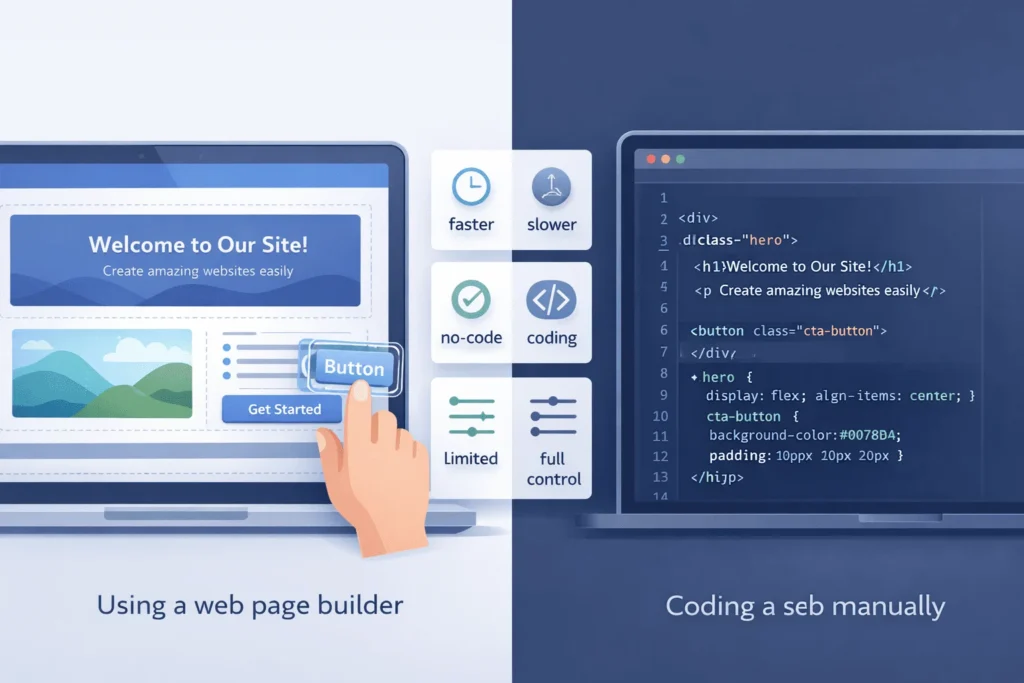
For non‑technical users and bloggers, the difference is workflow and control.
| Aspect | Web Page Builder | Manual HTML/CSS/JS Coding |
|---|---|---|
| Skill needed | Visual editing; no code required | Must know HTML, CSS, often JS |
| Time to first page | Minutes to hours | Hours to days for similar design |
| Design freedom | Within builder’s grid and components | Virtually unlimited, but requires expertise |
| Performance control | Limited but improving; depends on builder | Full control over assets, scripts, hosting |
| SEO & semantics | Decent defaults; limited deep tuning | Full control over markup and structured data |
| Maintenance | Platform handles updates and hosting | You manage hosting, updates, and security |
Visual builders are perfect for getting online quickly and iterating on content, while manual coding remains best when you need full control over performance, semantics, and complex interactions.
How To Build a Page With a Web Page Builder (Practical Walkthrough)
Times Needed: 2 Hours
Estimated Cost: 0–20 USD (depending on free vs entry paid plan)
Description: A simple, two‑hour process any non‑technical user or blogger can follow to build a clean, functional web page with a web page builder—from blank account to live URL.
Steps
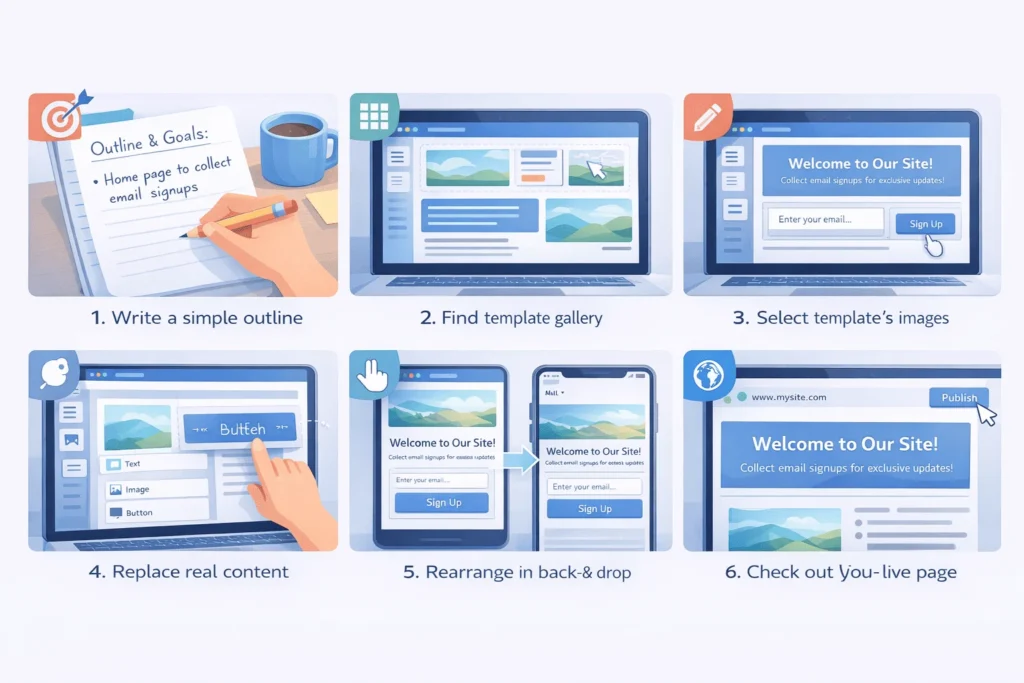
- Define the Page Goal and Outline
Step Title: Decide What This Page Must Achieve
Step Description: Write down the single primary goal (e.g., collect email signups, promote a post, share portfolio). Jot a quick outline of sections you need: Hero, About, Content, CTA, Footer. This keeps editing focused instead of random. - Pick a Template That Matches Your Goal
Step Title: Choose a Template Close to Your Structure
Step Description: In your web page builder, browse templates by category (blog, portfolio, business). Select one where the hero, content, and CTA layout roughly match your outline, so you spend time customizing, not rebuilding layouts. - Replace Demo Text and Images First
Step Title: Swap Template Content With Your Own Copy
Step Description: Click each text block and image, replacing dummy content with your headings, paragraphs, and visuals. Focus on clarity: explain who you are, what the page is about, and what the visitor should do next. - Refine Layout With Drag-and-Drop
Step Title: Rearrange Sections Using Drag-and-Drop
Step Description: If your sections feel out of order, drag entire blocks (e.g., testimonials, FAQs) up or down. Adjust column widths and spacing to improve readability, but avoid over‑tweaking tiny visual details at this stage. - Check Mobile View and Fix Issues
Step Title: Preview on Mobile and Tablet Views
Step Description: Use the builder’s device preview to see how your page looks on phones and tablets. Fix any overlapping elements, too‑small buttons, or long paragraphs so the page is easy to scan and tap on smaller screens. - Set Basic SEO Settings and Publish
Step Title: Add Title, Meta Description, and URL Slug
Step Description: In the page settings, set an SEO‑friendly title, concise meta description, and clean URL slug (e.g.,/aboutor/seo-tips-beginners). Then hit Publish, connect your domain, and test the live page in a few browsers.
Tools Name: Any modern web page builder (e.g., Wix, Squarespace, Webflow Lite, WordPress page builders), Google Docs (for copy), a basic image editor
Materials Name: Rough page outline, brand colors and logo, 5–10 images, clear call‑to‑action
FAQ Section
What is a web page builder in simple terms?
A web page builder is a visual design tool that lets you build pages by dragging and dropping elements on a canvas. The tool then converts your design into HTML, CSS, and JavaScript and hosts it for you—no coding needed.
Are web page builders and website builders the same thing?
They’re closely related. A website builder manages entire sites (multiple pages, navigation, hosting), while a web page builder often refers to the visual editor used to design each individual page. Many products bundle both in one platform.
Can I learn real web design by using a web page builder?
Yes—if you pay attention. Many education‑focused guides note that page builders are useful for understanding layout, spacing, typography, and responsive design, and some even expose the generated HTML/CSS so you can see how visual changes map to code.
Do web page builders hurt SEO?
Most modern builders include SEO basics—titles, meta descriptions, alt text, clean URLs, and mobile‑friendly layouts. For highly competitive niches or very large content sites, you may eventually want more direct control via WordPress or custom stacks, but many businesses rank well with builder‑based sites.
Are web page builders fast enough for Core Web Vitals?
They can be, but it depends on your choices. Heavy animations, large images, and too many third‑party widgets can slow any site down. Builder vendors like Zoho and others emphasize using optimized media, minimal scripts, and structured layouts to keep performance scores healthy.
What types of sites are best built with web page builders?
They’re ideal for blogs, portfolios, simple business sites, landing pages, and small stores where you value speed and ease over extreme customization. Advanced SaaS apps and complex platforms usually require custom development.
How big is the web page / website builder market?
Recent reports estimate the website builder software market at around USD 5.82 billion in 2025, forecast to reach USD 8.53 billion by 2029 (10% CAGR), while the no‑code website builder tools segment alone is projected to grow from USD 835 million in 2026 to USD 1.17 billion by 2034 (5.8% CAGR).
Can I add custom code to a web page builder site?
Some advanced builders allow you to inject custom CSS or JavaScript at page or site level. Platforms like Builder.io demonstrate how visual editors can expose “Edit JS + CSS” panels so developers can fine‑tune behavior while still letting non‑technical users edit visually.
Key Takeaways Section
- A web page builder lets you design visually, then converts your drag‑and‑drop layout into HTML/CSS/JS and hosts it—removing the need to code by hand.
- Templates, sections, and reusable blocks dramatically reduce build time from dozens of hours to just a few hours, especially for non‑technical users and bloggers.
- Modern builders take care of responsiveness, basic SEO settings, and publishing, so you can focus on content and structure while still launching a usable, mobile‑friendly page.
- Under the hood, page builders use structured layouts and dynamic CSS rules—often with attribute‑based selectors—to manage styling efficiently without overwhelming users with code.
- The website builder and no‑code markets are growing steadily, reflecting a long‑term shift toward democratized web creation where non‑developers can launch professional‑looking sites and pages.
Next Steps Section
- Define one page you want to build—for example, a blog home page, About page, or simple landing page.
- Try at least one web page builder using a free or trial account and follow the six‑step process above to create a first draft.
- Focus on clear structure and content first, then refine visuals and spacing instead of obsessing over tiny design details initially.
- Experiment with mobile previews and basic SEO fields (title, meta description, alt text) to get comfortable with how builders support discoverability.
- Once you’ve shipped a few pages, consider whether you need more advanced features or performance control; if so, explore stepping up to a CMS like WordPress with a page builder or a custom theme.
Conclusion
Web page builders have turned web design from a developer‑only skill into something accessible to non‑technical users, bloggers, and small business owners. They do this by wrapping complex HTML, CSS, and JavaScript generation in a visual drag‑and‑drop interface, while also handling hosting, responsiveness, and basic SEO.
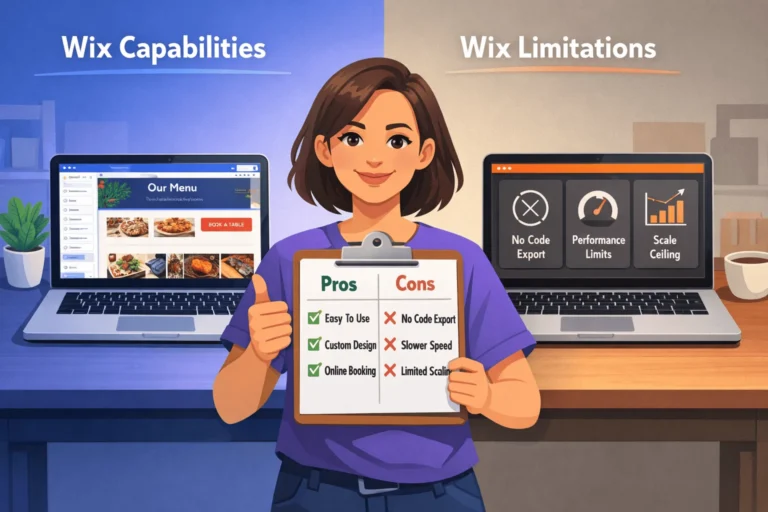
The trade‑off is simple: you sacrifice some deep technical control and ultimate flexibility in exchange for speed, simplicity, and lower upfront cost. For many use cases—especially early‑stage blogs, portfolios, and business sites—that is a smart trade. As needs grow, you can always transition to more customizable platforms while taking your content and learnings with you.
Understanding how a web page builder works under the hood means you can use it intentionally: structuring pages for clarity, performance, and discoverability rather than just “making something pretty.” Armed with that knowledge, your next drag‑and‑drop project can be not just easy—but strategically sound.